Read, review, solve
Screenshot Word Hunt Solver
Give your screenshot a clear path. Select, drop, or paste a PNG, JPEG or WebP image. We’ll find the board automatically. Edit any letter directly in its tile, then confirm and solve.
Image pixels are processed locally in your browser. Your screenshot is not added to history or a board share.
Solve a screenshot
Choose an image. We’ll find the board and read its letters.
Or drop an image here · PNG, JPEG, WebP · up to 15 MB / 20 megapixels · processed locally.
Custom rules · 4×43+ letters8 directionsQ = Q90s practice
Each tile is used once per word. Site word list and scoring are independent of GamePigeon.
Word list & rule versions
Word list: enable1 v1. Rules: custom-4 1.0.0. Scoring: length-v1. GamePigeon word acceptance and scoring are not verified.
Search options
A time limit keeps large searches responsive. Unfinished searches show partial results; raise the budget to search longer.
Letters and screenshots are processed on this device. Privacy & network details
Your word list
Ready when you areFilter & sort
A clear path to every word.
Enter your letters or review a screenshot, then find words from our published English word list. Select a word to see a numbered swipe path.
Keep the board; leave the conversation out
The detector looks for board geometry and divides the selected crop into tiles. If the suggested area misses your board, adjust it and confirm the grid size. You can use 4×4, 5×5, 6×6 or 7×7 grids. Recognition does not inspect the entire conversation and guess letters from how many words they produce.
Review before solving
Recognition uses local glyph templates. Unknown themes, fonts, compression and image rotation can make a letter uncertain. Check the recognized board and edit any letter directly in its tile. Highlighted tiles deserve a closer look; they are review cues, not measured accuracy claims. Original tile crops and alternative suggestions are available in Correction tools.
Recover from a difficult image
For unsupported HEIC files, convert to PNG or JPEG first. A broken file can be replaced without discarding the manual-entry option. For poor crops or unfamiliar letter styles, retry the crop or enter the board yourself. Image limits and decoding errors are shown before processing.
What “local” means
Screenshot pixels and solved board letters stay in the browser workflow. Opening the site and loading the word list still creates network requests. No cloud OCR or cloud language model is needed for recognition. Read our privacy details and OCR measurement method and limitations.
Practical details and worked examples
The word hunt solver screenshot workflow converts a picture into a board you explicitly review. Image processing stays in the browser, and an image is not sent to cloud OCR or a language model. Choose PNG, JPEG, or WebP. The tool finds and reads the board automatically; edit letters directly in the grid, then confirm and solve. A readable output is useful only if it corresponds to the intended tiles, not text elsewhere in the picture.
Start with a decodable original
Use an exported image rather than renaming an unsupported extension. You can select a file, drop it onto the input area, or actively paste an image from the clipboard. Format checks and decode errors produce a recovery message. HEIC is not a verified supported format here; export a PNG or JPEG when needed. Large or damaged files may fail safely, and manual letter entry remains available without waiting for recognition to recover.
Locate the grid before reading letters
The word hunt solver screenshot detector looks for repeated tile geometry, rather than assuming that every device places the board at one screen coordinate. The word hunt solver screenshot workflow reads a detected board automatically. Use Compare original board to check its area, and open Adjust crop / retry if the selected area includes surrounding interface or clips an outer row. Rotation can correct a tilted rectangular capture, but this interface does not promise arbitrary perspective reconstruction from a photographed screen. The board size is detected automatically; if needed, change it in the crop editor before reading again.
Edit letters directly in the grid
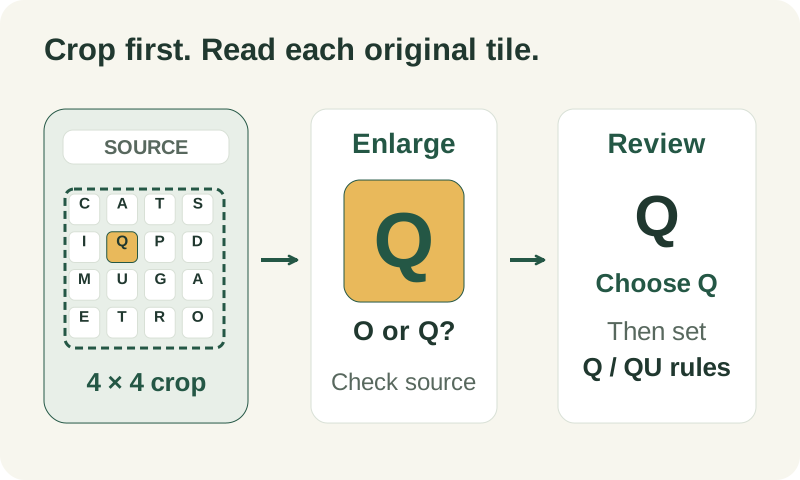
The visual word hunt solver lets you click any grid letter and edit it in place. Correction tools can show the original cell and alternative letters to resolve ambiguities such as O versus Q or I versus J. Highlighted cells are review cues, not calibrated probabilities. Unknown or uncertain cells need human attention, and the workflow requires review rather than treating a confident-looking guess as a fact. Enlarge a questionable source cell, compare the candidates with its actual shape, and type the letter you can verify.
Keep correction separate from automatic recognition
An image that succeeds after you replace a letter is a successful assisted workflow, not a wholly correct automatic recognition. That distinction matters for honest accuracy reporting. You may edit any tile, not only one marked uncertain. The word hunt solver screenshot workflow does not secretly choose letters by maximizing the number of dictionary words. A mistaken board can produce many convincing words, so solver abundance would be an unsafe way to decide what an image originally contained.
Recover without losing the task
If a crop is wrong, return to geometry instead of correcting every resulting tile individually. If the style remains unreadable, type the board manually and continue with the same rules. Local processing still needs ordinary static resources to load; it does not mean that first use works without any network requests. Retry a failed download when connected, preserve only the reviewed letters you need, and avoid including private surrounding chat in a voluntary report.
A practical sequence
- Provide a PNG, JPEG, or WebP through selection, drop, or active paste.
- Let the tool locate the board and read its letters automatically.
- Check the recognized board and edit any wrong letter directly in its tile.
- Use Adjust crop / retry or Correction tools only when needed.
- Choose Confirm & solve, then inspect words and numbered paths.
A worked example
Imagine a Q whose small tail disappears when the entire phone image is reduced. An O candidate may look reasonable in the overview. Enlarge that single source tile before accepting it. If the tail is visible, replace O with Q and choose literal Q or automatic QU according to your intended Custom rules. The picture establishes the visible token; the rule selector establishes its meaning. Those two decisions should not be silently combined by a word hunt solver screenshot tool.
What to carry into your next attempt
Use the word hunt solver picture workflow to reduce transcription effort, while retaining responsibility for the visible crop and letters. Synthetic fixtures and desktop browser checks do not establish real GamePigeon accuracy across phones or themes. The OCR benchmark explains measured coverage and the remaining real-device validation, and the troubleshooting guide gives practical recovery steps.
Check the selected rules and custom points, word-list source and license, verification methods, and local data and network details when interpreting this example.